Get started
Your first five minutes
The welcome tour, and the few things worth trying first.
The first time Dynotch opens, a four-step tour shows you around. Skip it if you like: Welcome Tour… in the menu bar menu and Settings›About bring it back.
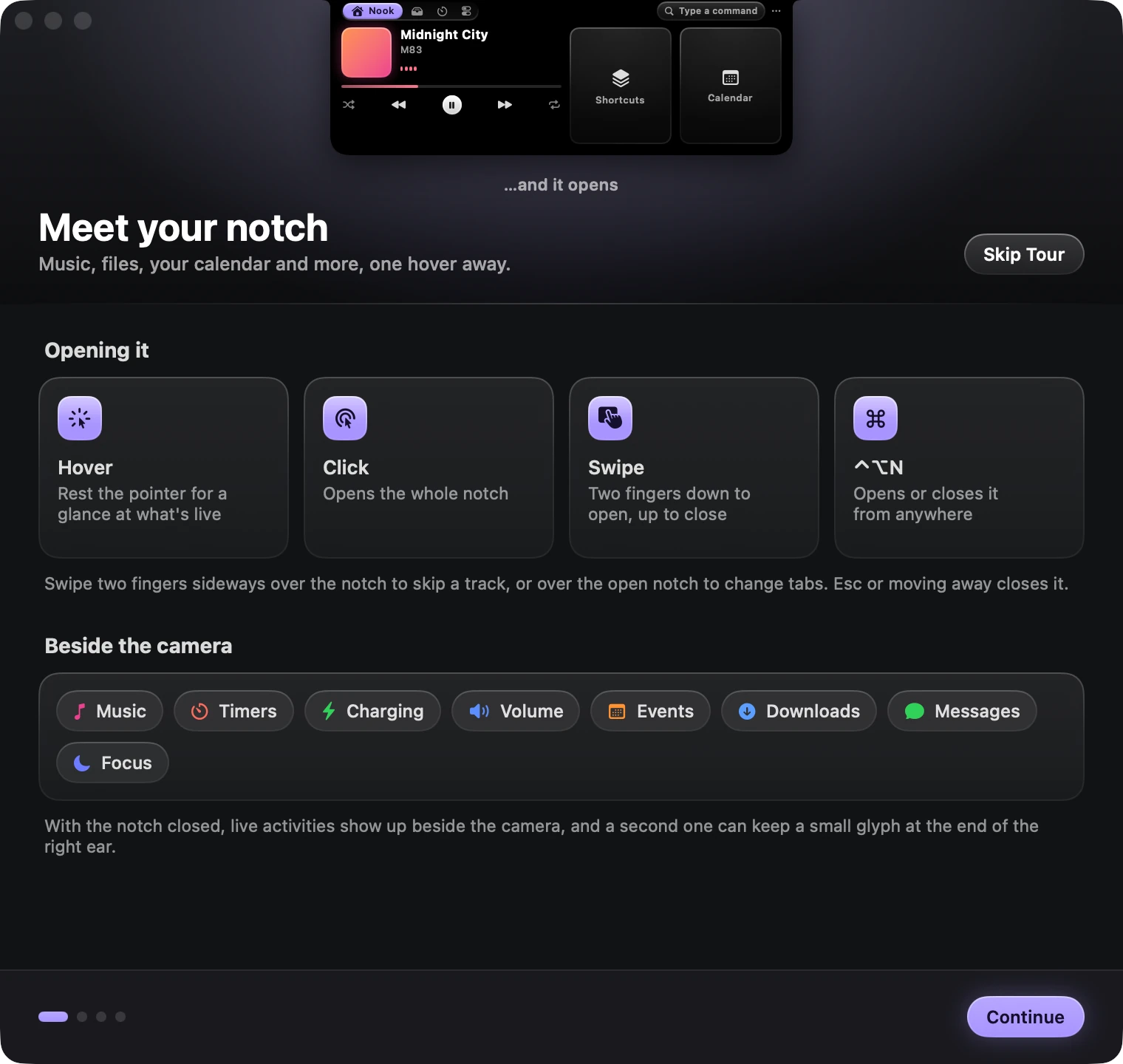
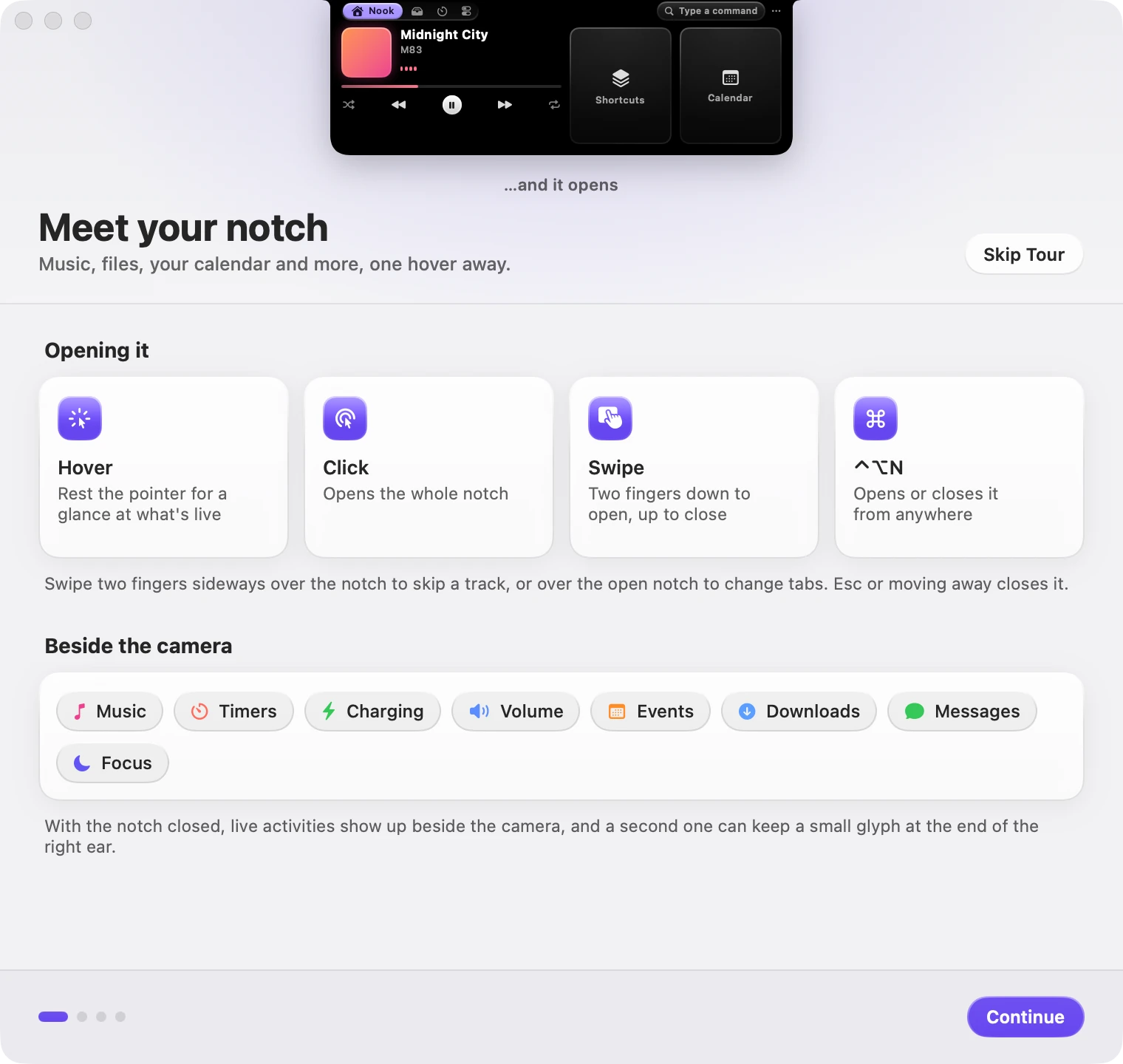
Meet your notch
The first step shows how to open the notch and what shows up beside the camera.
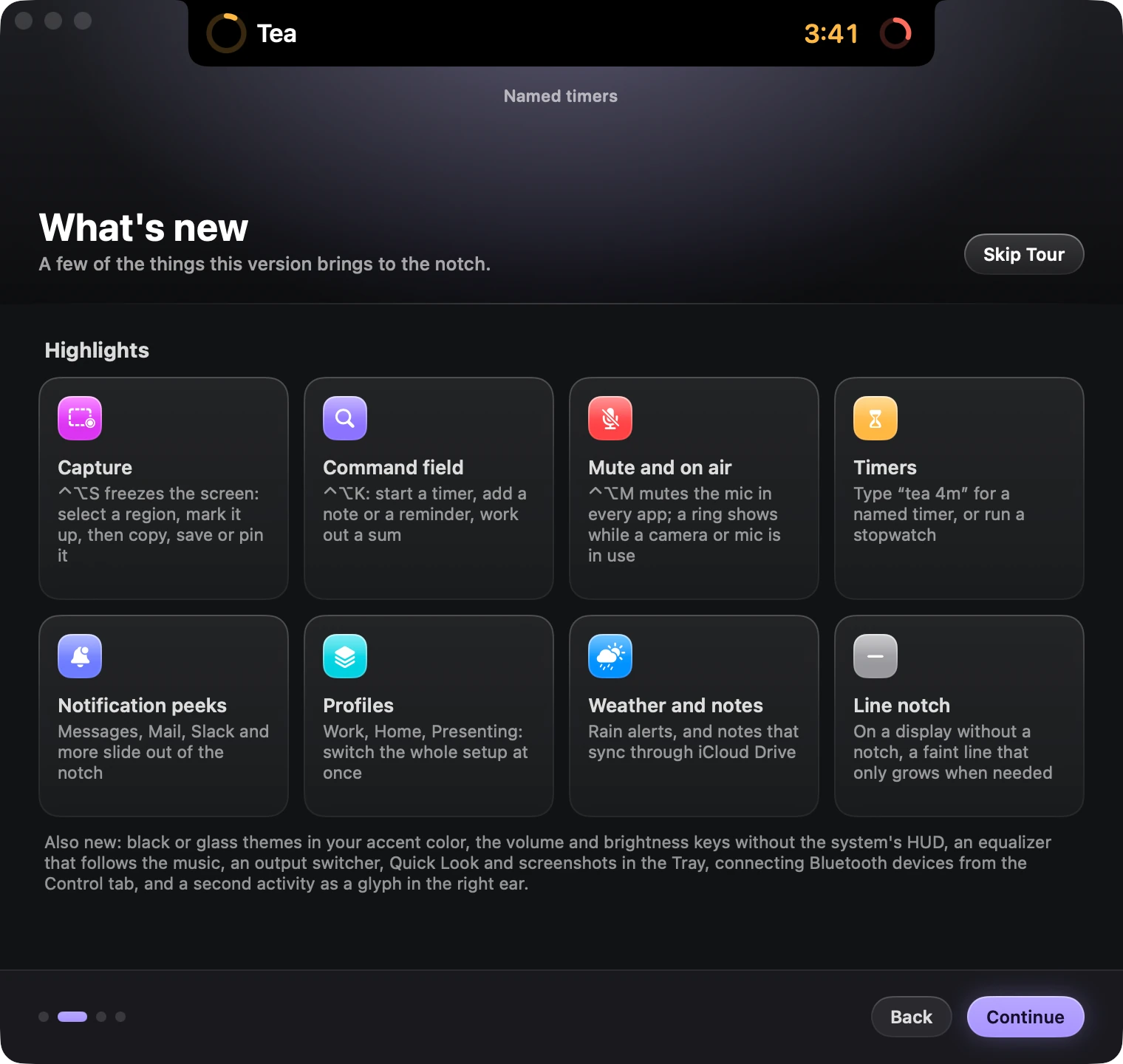
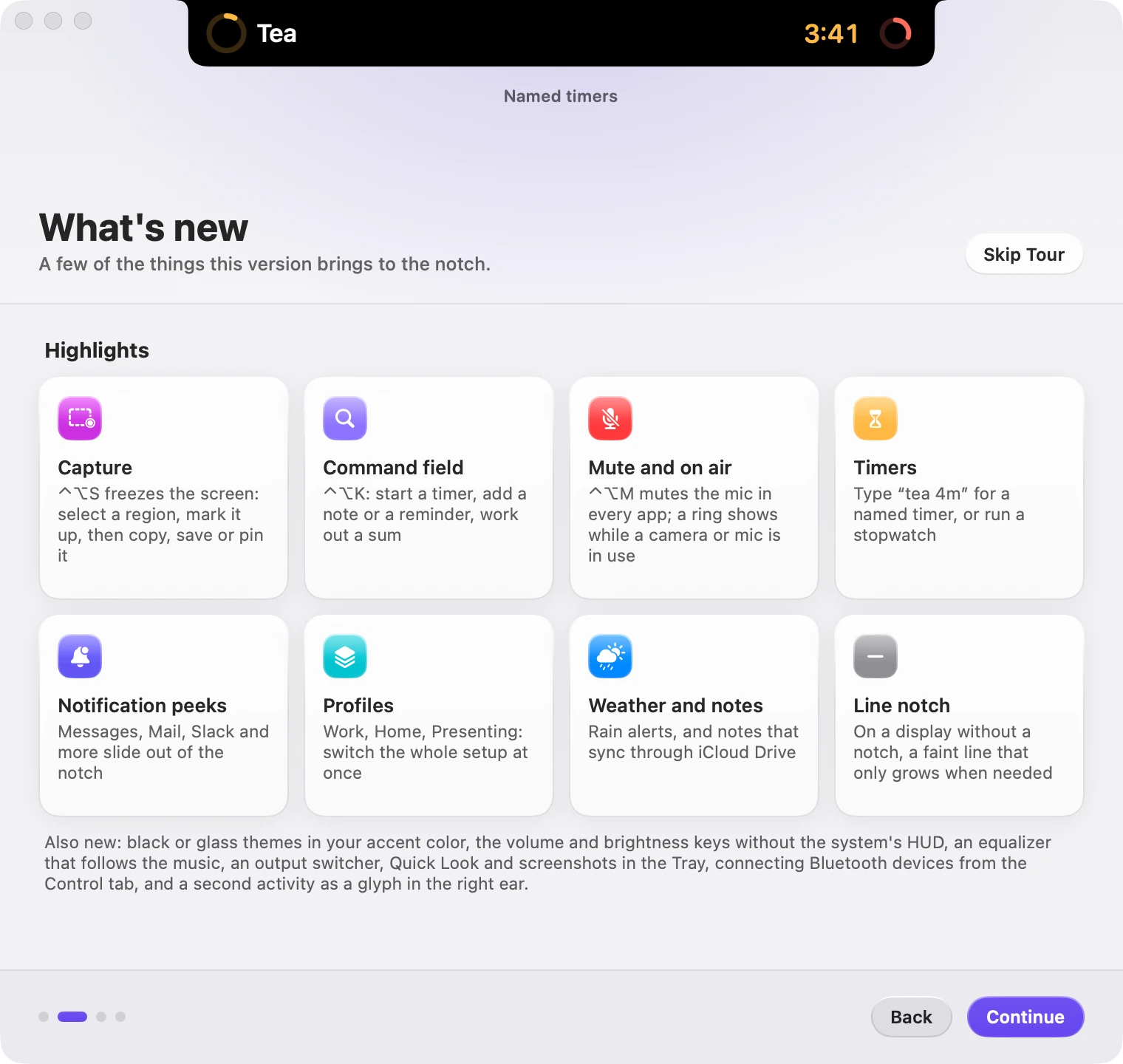
What’s new
The second step lists what this version brings. It’s a good way to see what the app can do in one screen.
Permissions
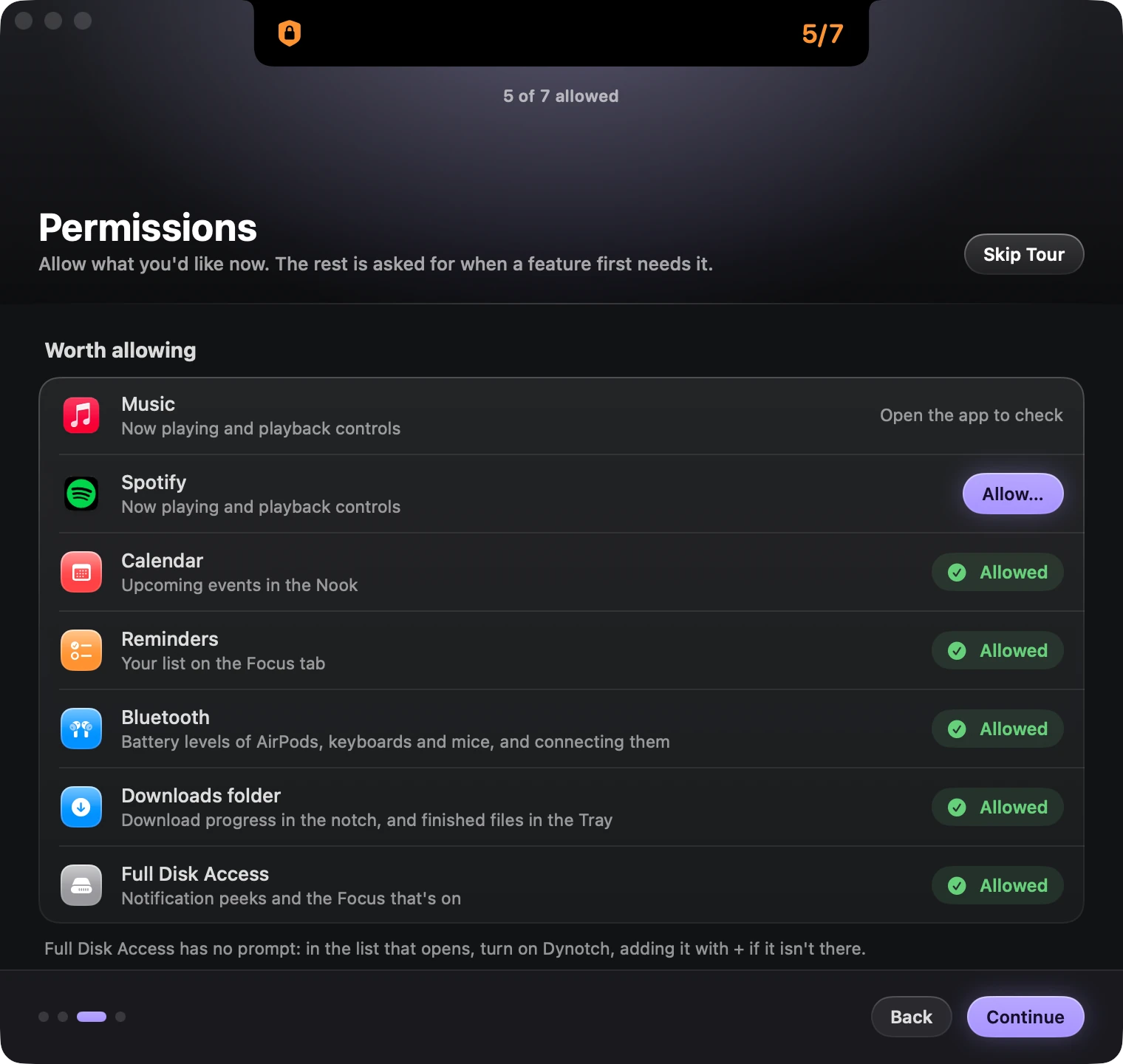
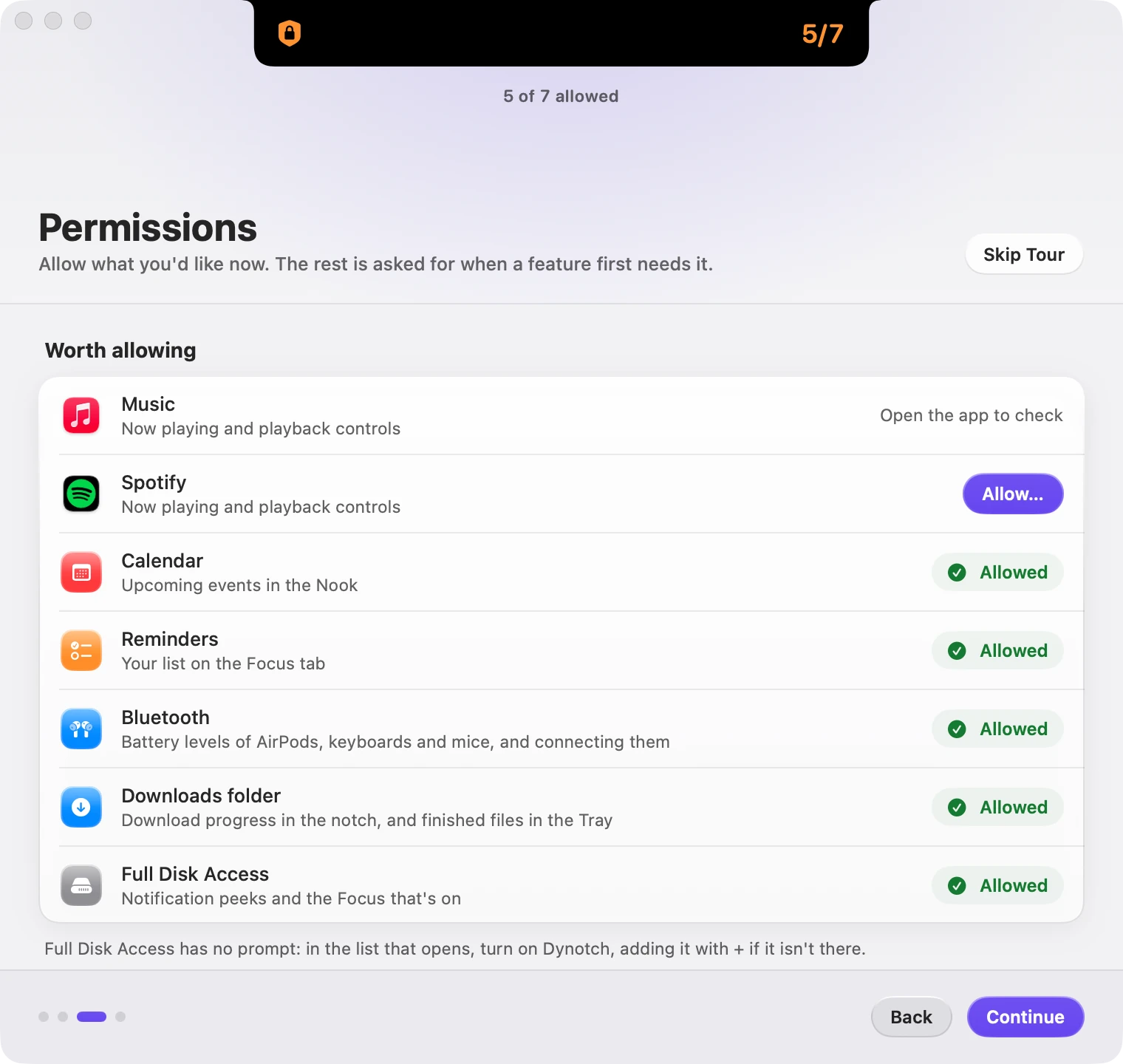
The third step lists the permissions worth allowing, each with its status and an Allow or Open System Settings button. Allow what you’d like now. The rest are asked for when a feature first needs them, so you can skip this and lose nothing.
Where things are
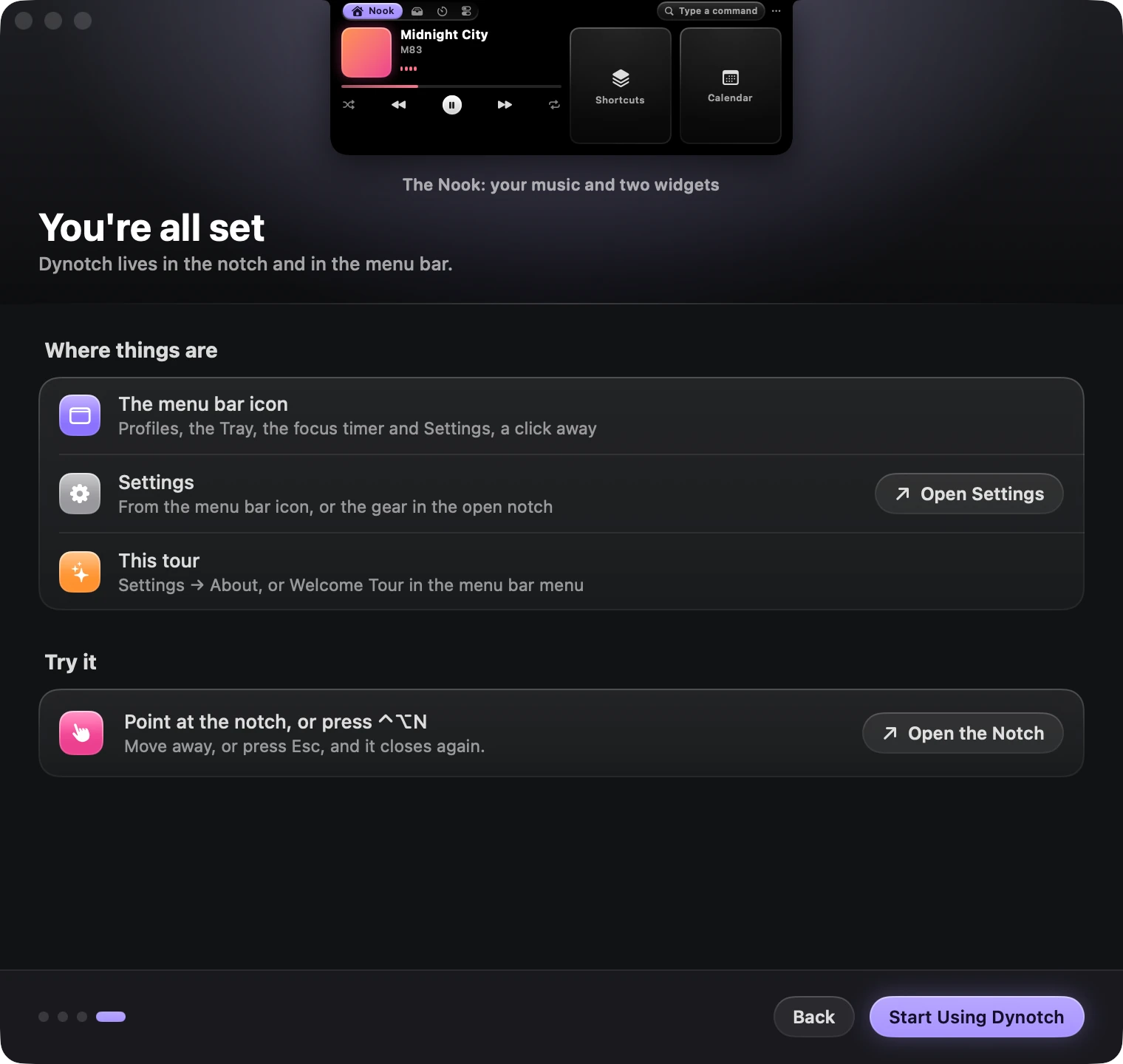
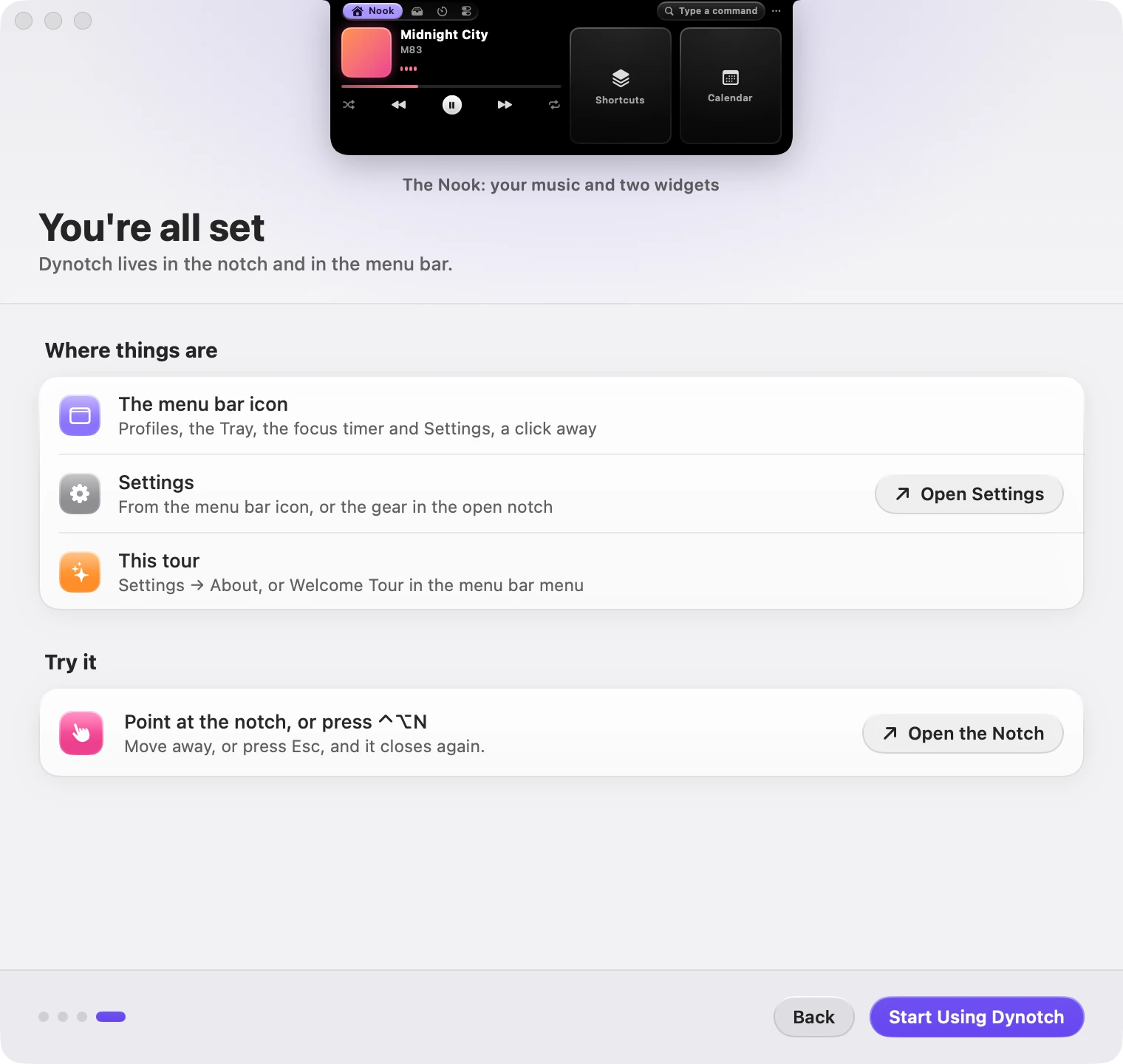
The last step points out the three places to find things: the menu bar icon, Settings, and the tour itself.
Try these first
- Rest the pointer on the notch. It grows into a glance at what’s live. Move away and it closes.
- Click it. The whole notch opens on the Nook, with your music and calendar.
- Swipe sideways over the open notch to move between its tabs.
- Press Control Option K and type
tea 4m, then Return. A four minute timer starts, and the closed notch counts it down. - Drag a file toward the notch. It opens with drop zones, so you can keep the file close, send it or compress it.
The menu bar icon
Click Dynotch’s icon in the menu bar for the rest:
| Item | Shortcut |
|---|---|
| Open Notch | Control Option N |
| Open Tray | |
| Start Focus Timer | |
| Mute Microphone | Control Option M |
| Capture Screen | Control Option S |
| Profiles | |
| Settings… | Command , |
| About Dynotch | |
| Check for Updates… | |
| Welcome Tour… | |
| Quit Dynotch | Command Q |
Settings is also behind the ··· button in the open notch’s header, with Edit Layout… and your profiles beside it.