Get started
Opening and closing
Every way in and out of the notch.
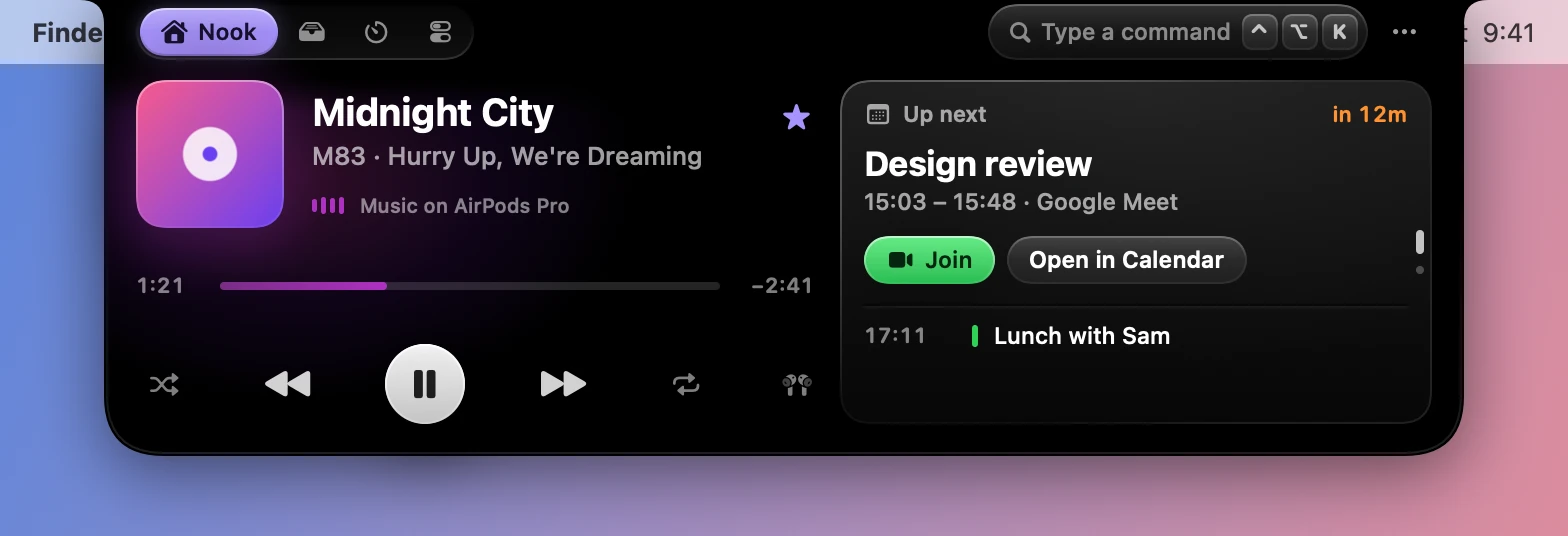
The notch has three sizes. Closed, it blends into the camera housing and shows live activities beside it. A glance shows what’s live, and the open notch has everything.
Opening it
| Do this | And |
|---|---|
| Rest the pointer on the notch | A glance grows out of it |
| Click the notch, or the glance | The whole notch opens |
| Swipe down on the trackpad over the notch | The whole notch opens |
| Press Control Option N | The notch opens, or closes if it’s open |
| Press Control Option K | The notch opens on the command field |
| Drag files toward the notch | It opens on the Tray’s drop zones |
| Choose Open Notch or Open Tray in the menu bar menu | The notch opens |
Run dynotch open, or open a dynotch:// link |
The notch opens on the tab you name |
Closing it
- Move the pointer away. If you opened it without the pointer, with a shortcut, the menu bar or a link, it waits until the pointer has been over it once.
- Click anywhere outside it.
- Swipe up. Over a list with more than it shows, the swipe scrolls the list, so on the Focus tab only the header closes it. Over the Nook’s stack, the swipe turns the stack.
- Press Control Option N again.
- Press Esc, whichever app you’re in. While the notch is open the key is the notch’s, so the app doesn’t get it. A menu, a drag or AirPlay’s device list still gets it first.
Moving between tabs
The open notch has four tabs: Nook, Tray, Focus and Control. Click one, or swipe two fingers sideways over the open notch. Over the Tray’s strip of files, once it runs over, the swipe scrolls the strip instead. The Nook is always there, and you can hide the others in Settings›Nook & Widgets›Tabs.
Over the header, the same sideways swipe skips tracks instead, as it does over the closed notch. See Audio and keys.
Changing how it opens
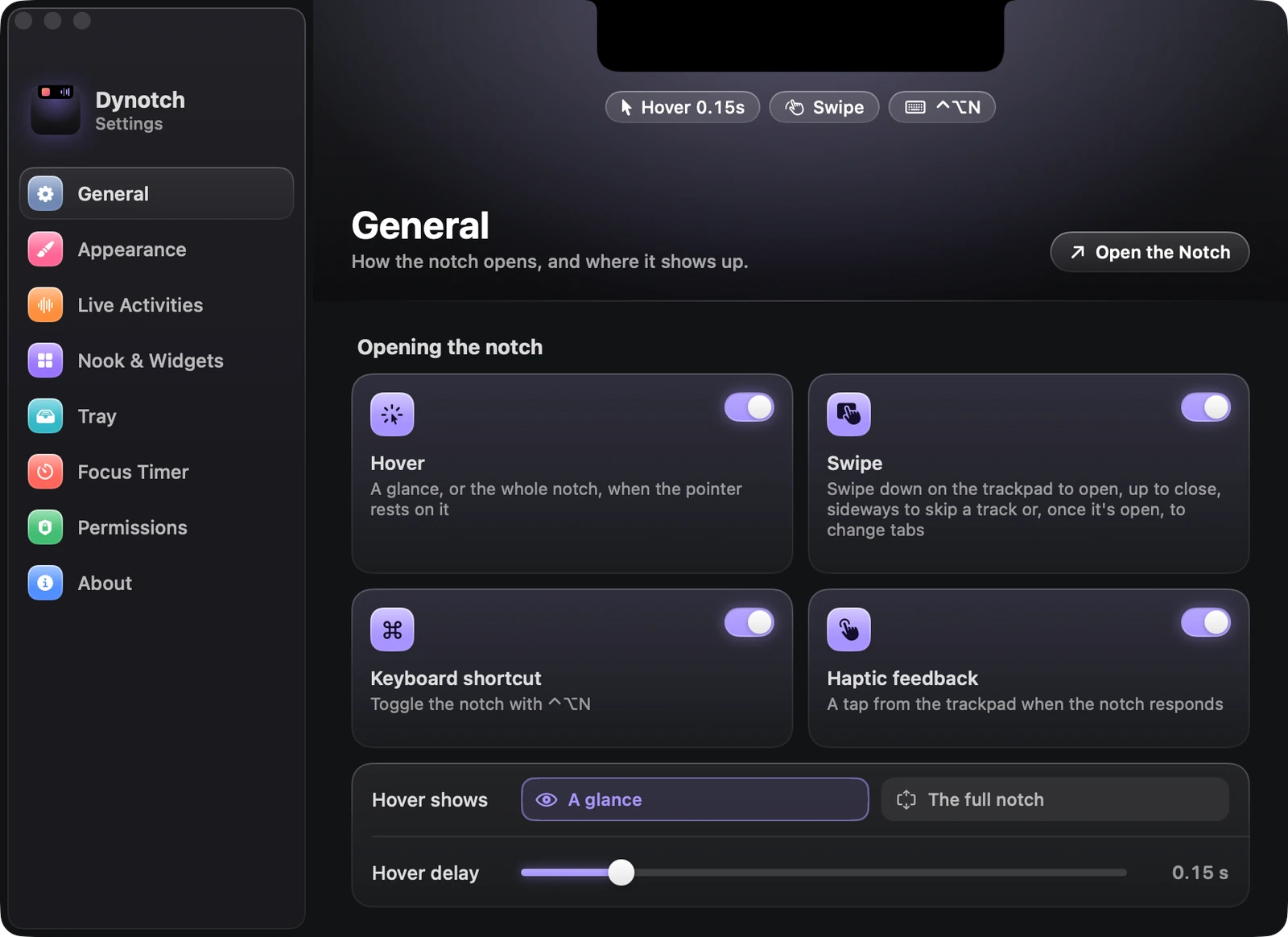
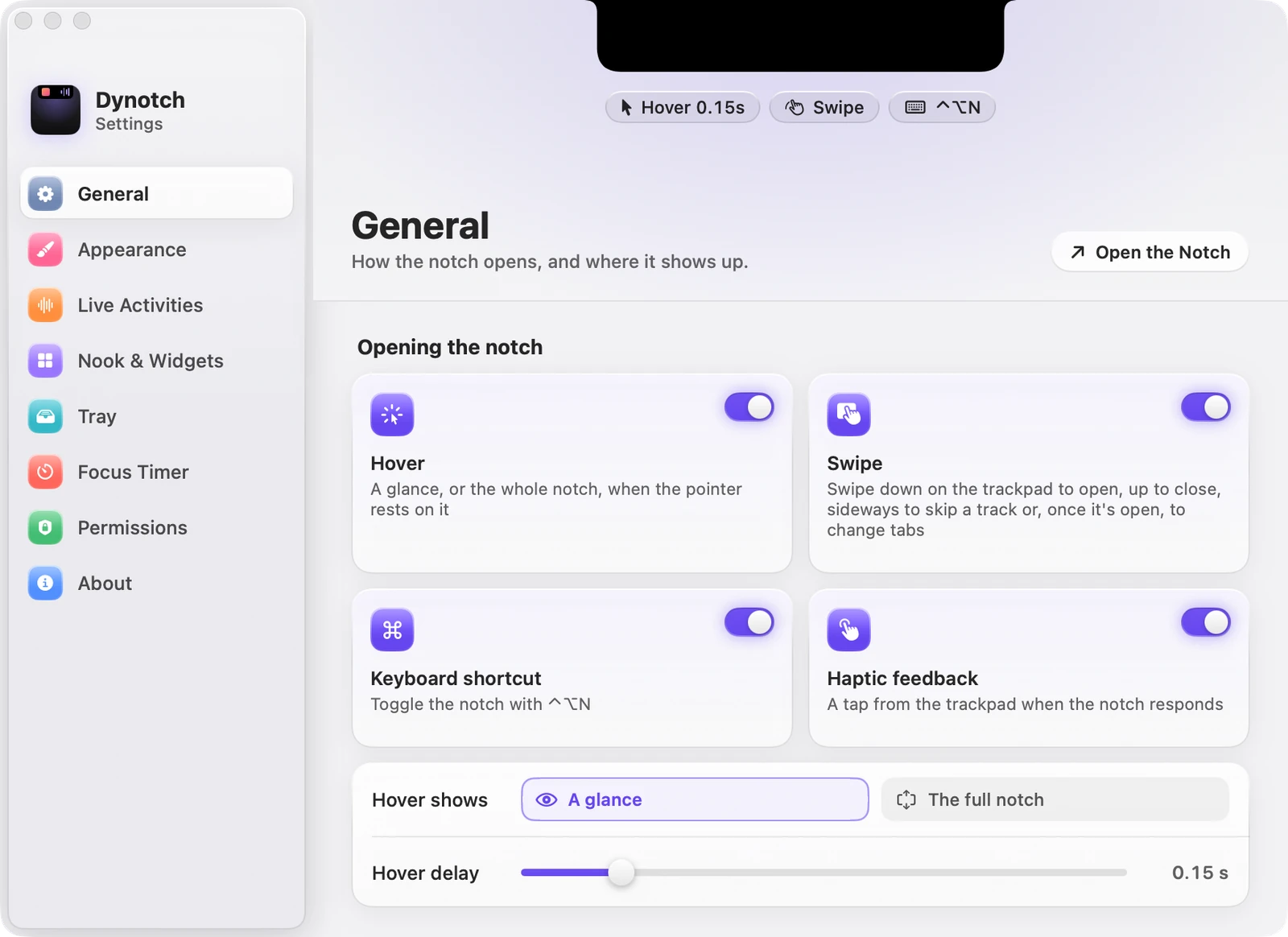
All of this is in Settings›General›Opening the notch.
| Setting | What it does | Starts as |
|---|---|---|
| Hover | A glance, or the whole notch, when the pointer rests on it | On |
| Swipe | Swipe down to open, up to close, sideways to skip a track or change tabs | On |
| Keyboard shortcut | Toggles the notch with Control Option N | On |
| Haptic feedback | A tap from the trackpad when the notch responds | On |
| Hover shows | A glance, or The full notch as Dynotch did before it had glances | A glance |
| Hover delay | How long the pointer rests before anything happens, from 0 to 1 second | 0.15 s |