The notch
Nook
Your music, and a stack of widgets beside it.
The Nook is the first tab of the open notch, and the one that’s always there.
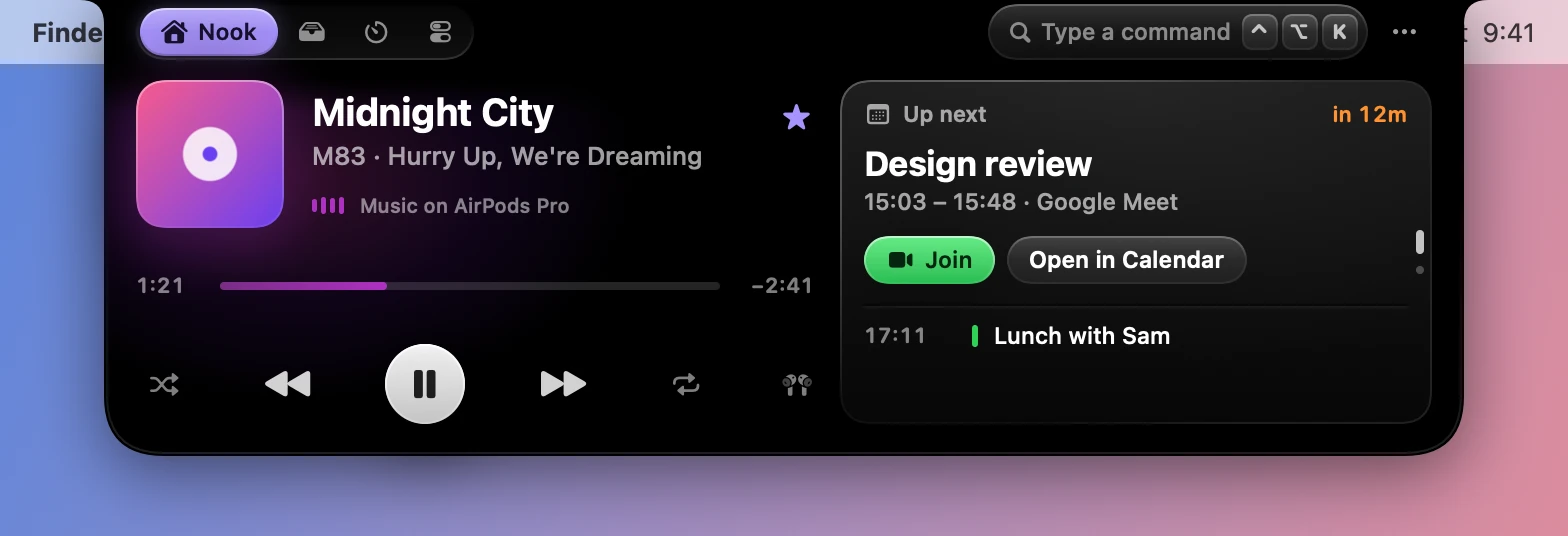
The player
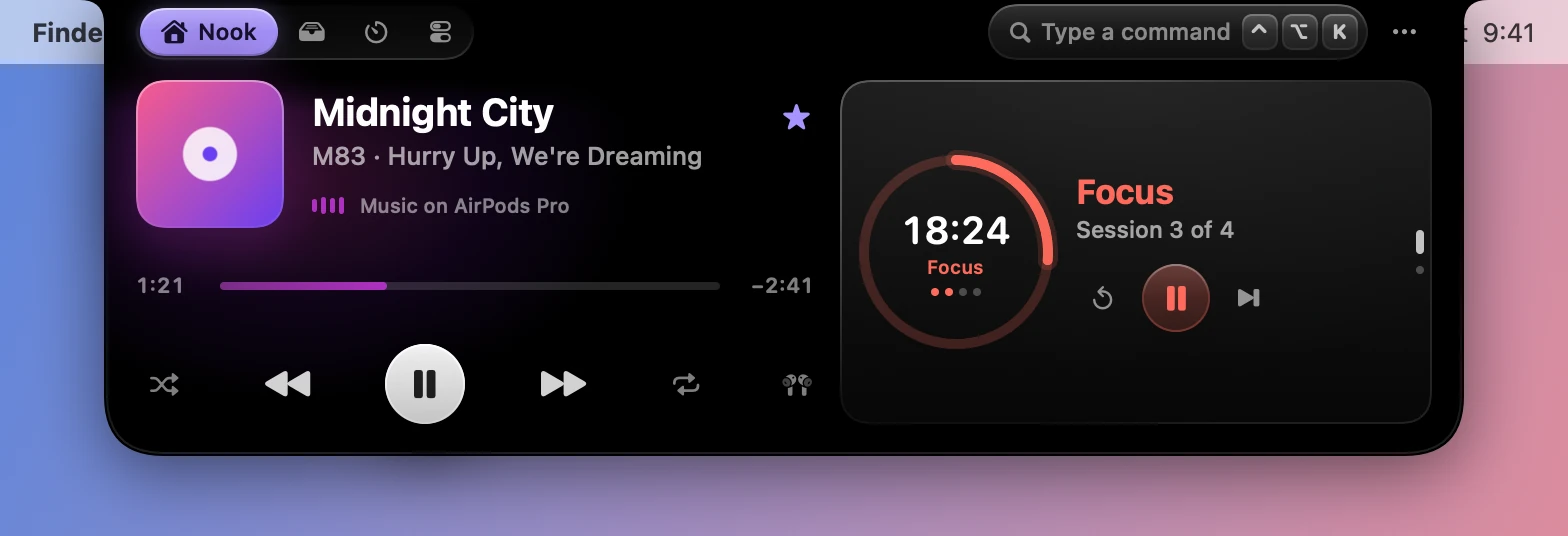
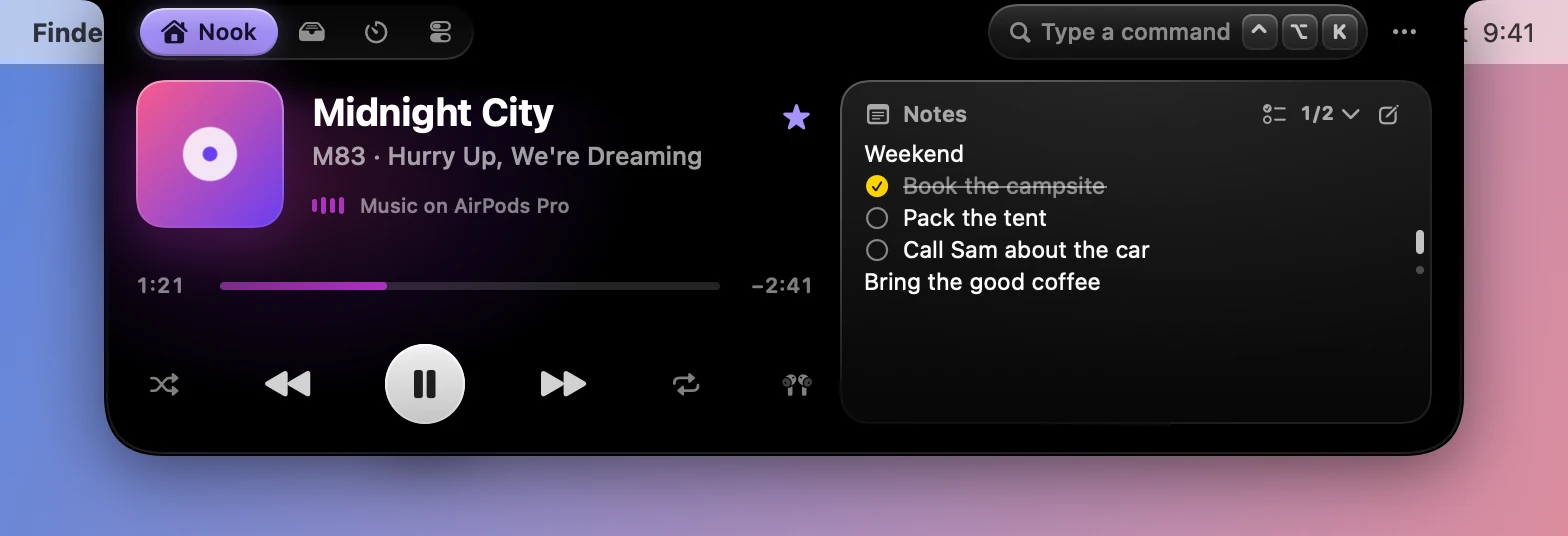
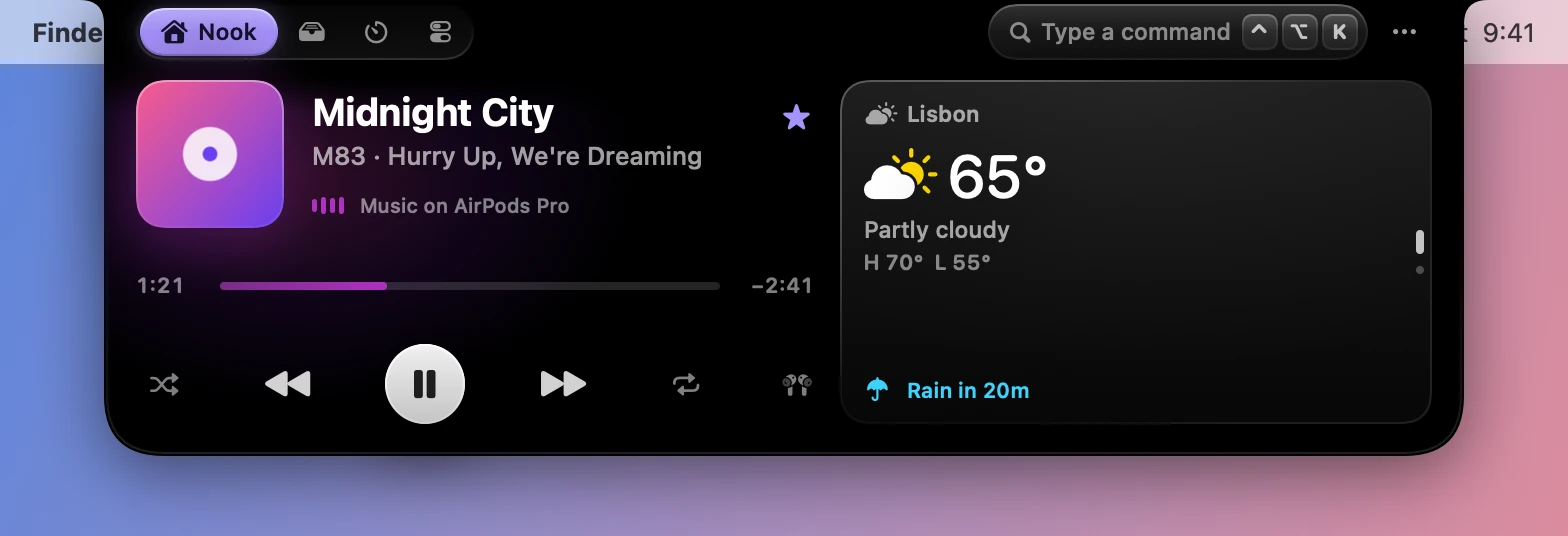
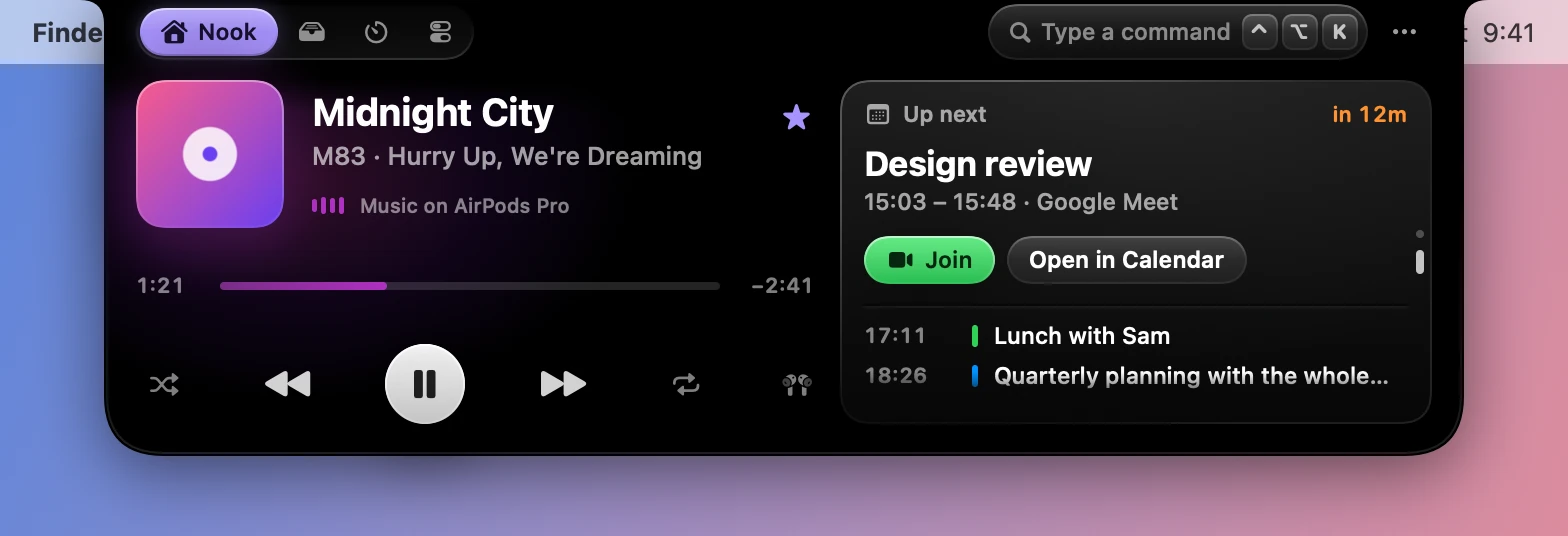
The player follows Apple Music and Spotify. It shows the artwork, the track and where it’s playing, a scrubber, a big play button, next and previous, shuffle and repeat, on a glow in the album art’s color.
- Favorite is the star, for Apple Music. Spotify doesn’t let other apps like songs.
- The output button lists the Mac’s outputs and switches between them. See Audio and keys.
- Scrolling over the artwork changes the volume.
With nothing playing, the player offers a button for each of the two that’s installed.
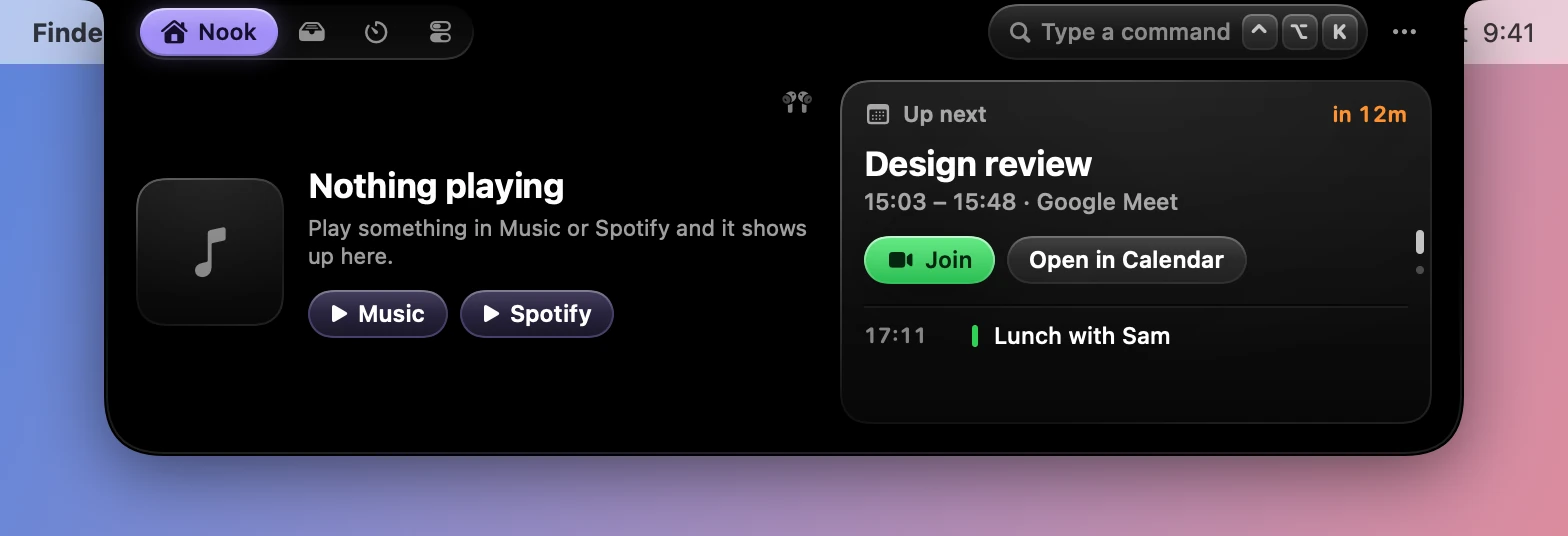
Turn off Artwork tint in Settings›Appearance›Style to color the player with your accent instead of the album art.
The stack
Beside the player sits a stack of up to two widgets, one showing at a time. Choose them in Settings›Nook & Widgets›Stacked beside the player.
| Widget | What it shows |
|---|---|
| Calendar | Up next, and the rest of the day. See Calendar and weather |
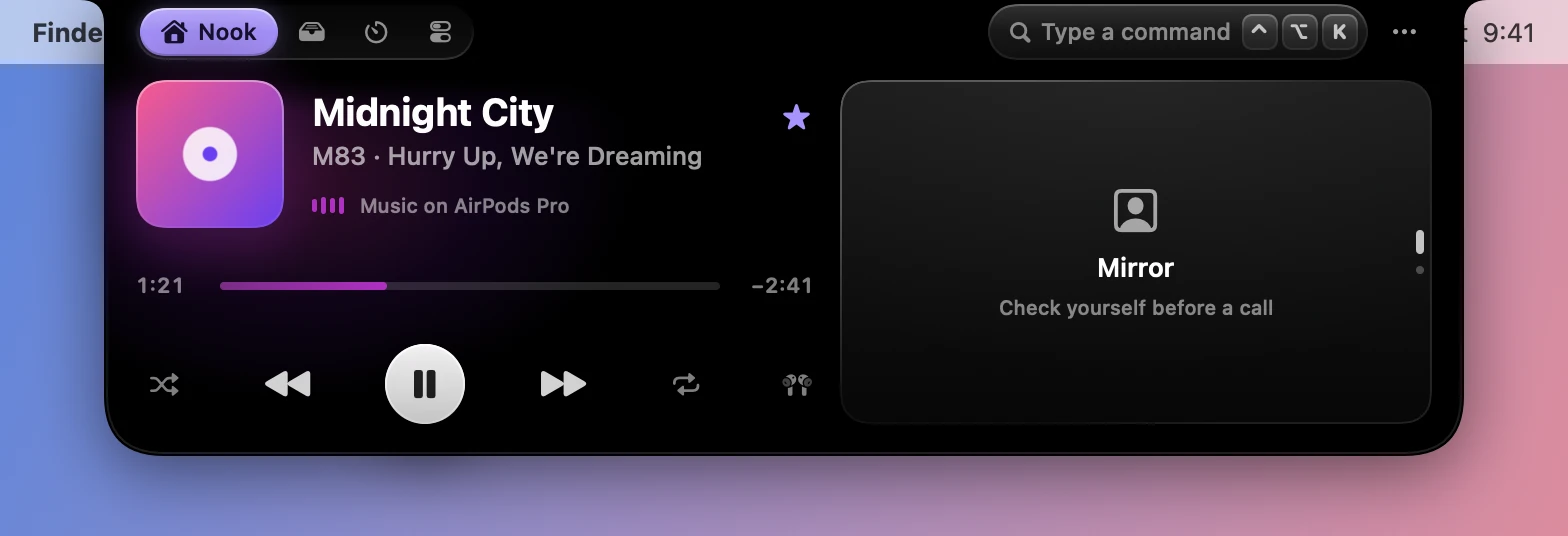
| Mirror | Your camera, to check yourself before a call. Click the card to turn it on and again to turn it off, and it stops by itself when the card leaves the screen |
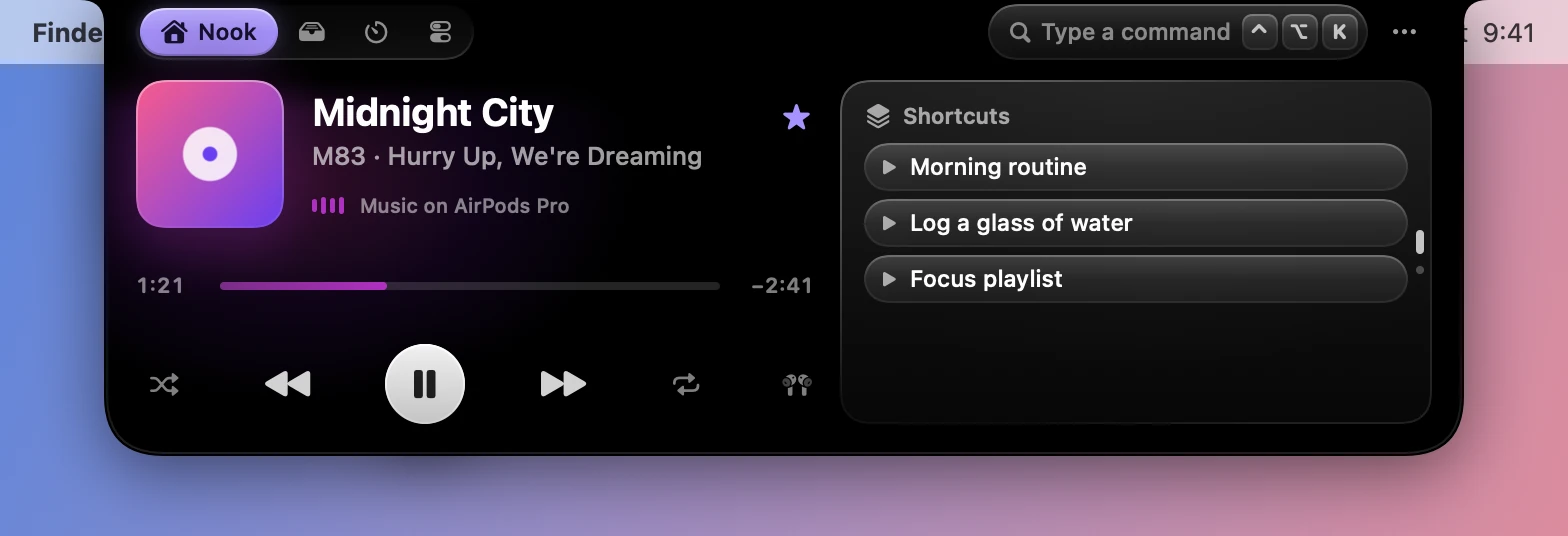
| Shortcuts | Up to four pinned Shortcuts, a click away |
| Focus timer | The Pomodoro, with its controls |
| Batteries | Rings for the Mac, AirPods, keyboards, mice and more |
| Quick toggles | The Control tab’s toggles |
| Notes | Your notes, with their checklists |
| Weather | Current conditions, and today’s high and low |
The first widget starts as Calendar and the second as Mirror. Either can be Nothing.
Turning the stack
The stack turns by itself to whatever matters now, as long as that widget is one of your two:
- to the calendar during an event, or within 15 minutes of one
- to the weather when rain is on its way
- to the batteries when one runs low
To turn it by hand, swipe up or down over it, or use the dots on its edge. A card with more than it shows, like a long note or the batteries, scrolls first.
Live equalizer
The bars beside the track are decorative until you turn on Live equalizer in Settings›Live Activities. Then they follow the music. See Audio and keys.