The notch
Live activities
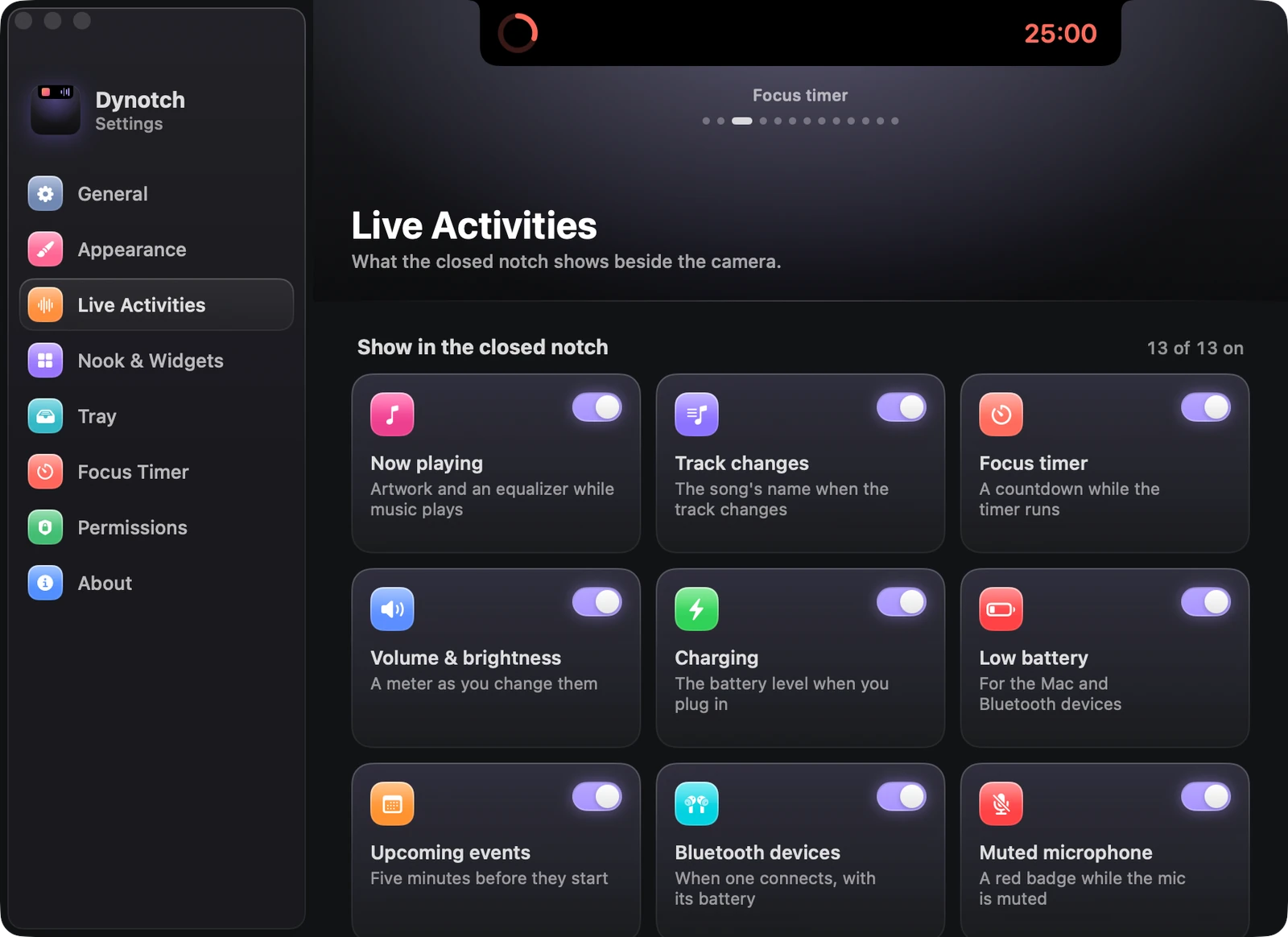
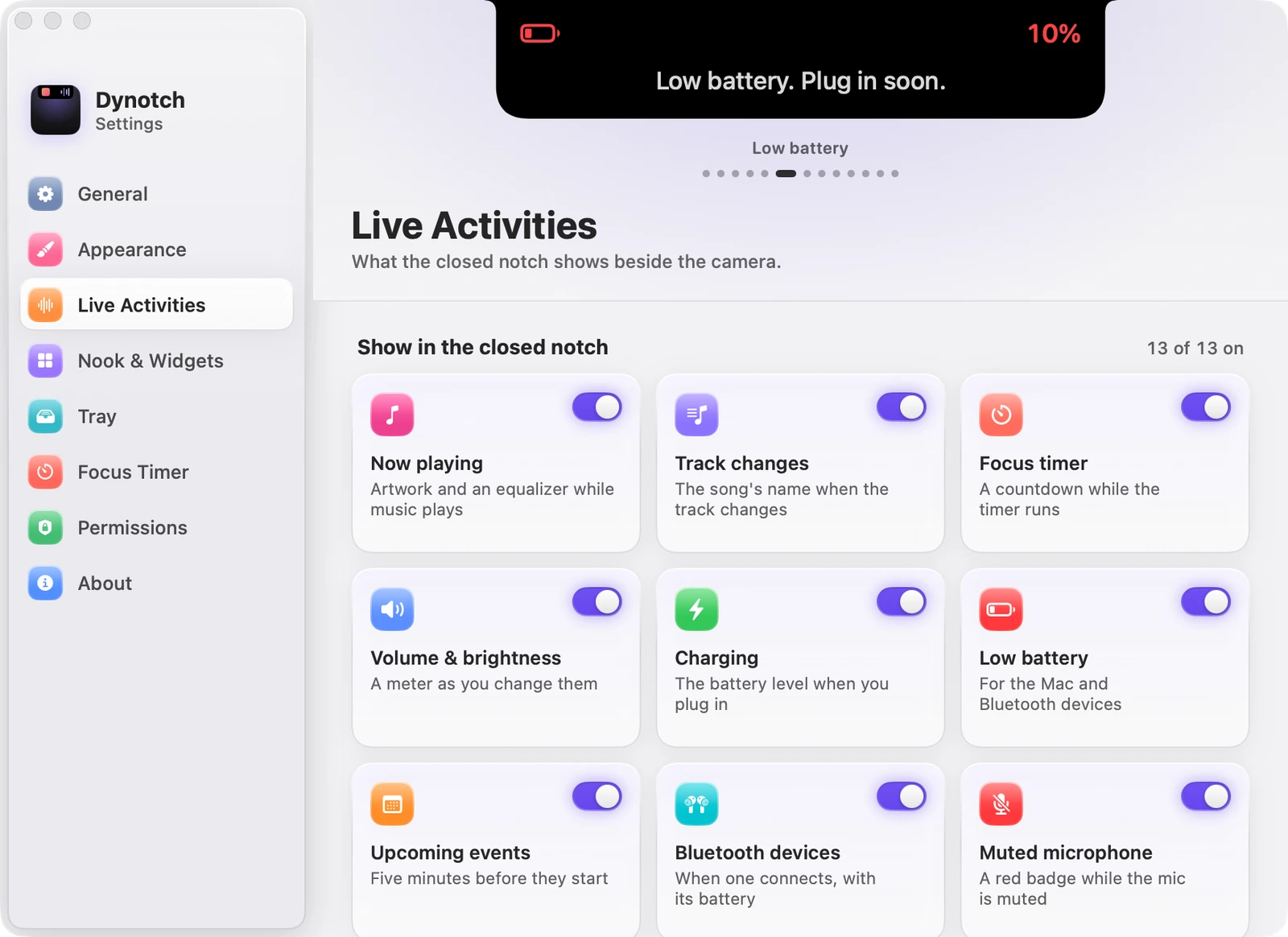
What the closed notch shows beside the camera.
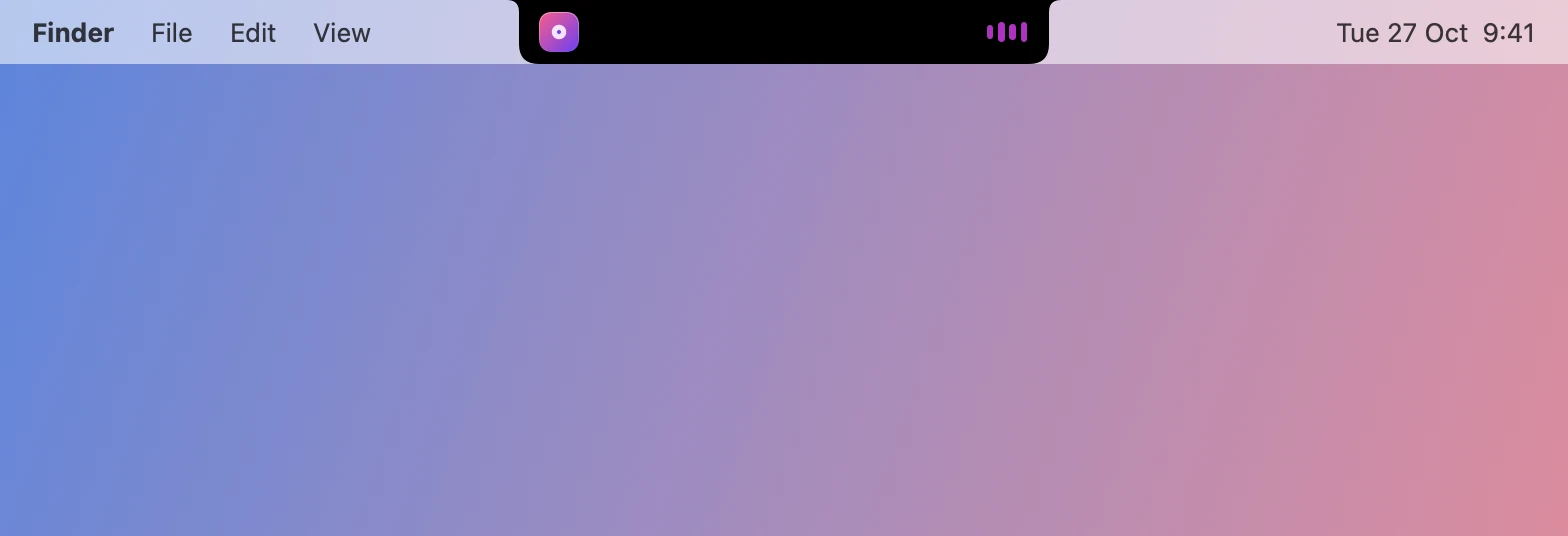
With the notch closed, what’s going on shows up beside the camera, without opening anything. The closed notch stays black, so it blends with the camera housing, and grows only as far as it has to.
What it can show
Each one has a switch in Settings›Live Activities. All of them start on.
| Activity | What it shows |
|---|---|
| Now playing | Artwork and an equalizer while music plays |
| Track changes | The song’s name when the track changes |
| Focus timer | A countdown while the timer runs |
| Volume & brightness | A meter as you change them |
| Charging | The battery level when you plug in |
| Low battery | For the Mac and Bluetooth devices |
| Upcoming events | Five minutes before they start |
| Bluetooth devices | When one connects, with its battery |
| Muted microphone | A red badge while the mic is muted |
| Timers | Named timers and the stopwatch from the Focus tab |
| Downloads | Progress as a file downloads, and a notice when it’s done |
| Focus | Your Focus’s symbol while one is on, and a notice when it changes |
| Notifications | Messages, Mail, Slack and more as they arrive |
A few other things use the same space: a Shortcut finishing, a screenshot landing in the Tray, rain about to start, a new version of Dynotch, and whatever your scripts say.


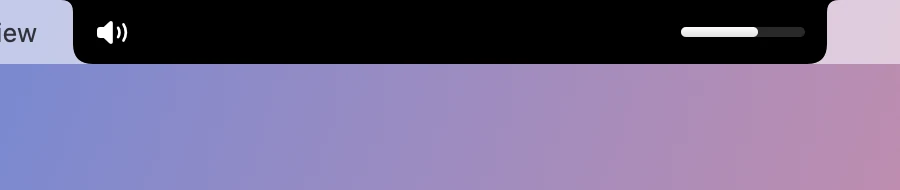
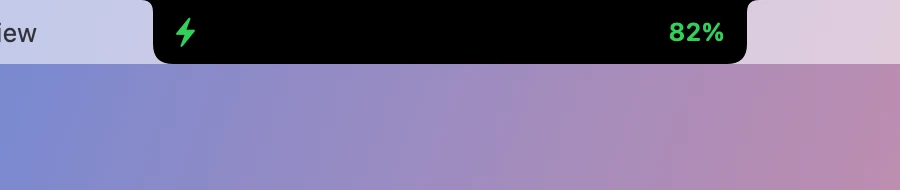


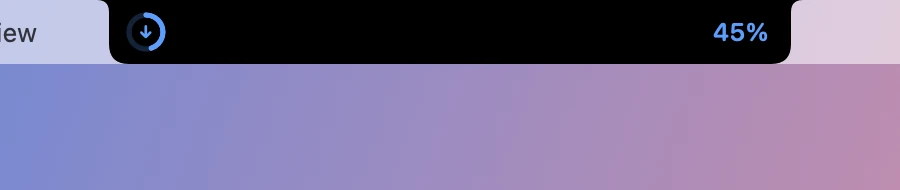



To see one without waiting for it, point at it in Settings›Live Activities and it plays in the model notch at the top of the page. The Preview tile shows a sample in the real notch.
Two at once
A second activity keeps a small glyph at the end of the right ear while another takes the notch: the mute badge, a timer’s or a download’s ring, the Focus that’s on, or the album art.
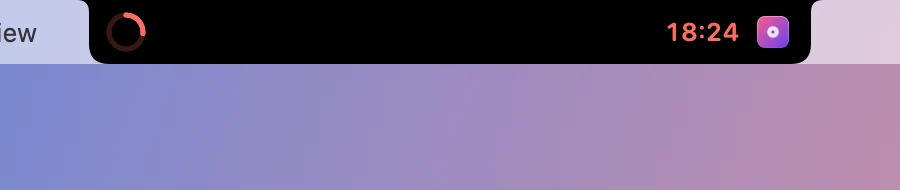



The main activity follows this order, and the first that applies takes the notch:
- Notices
- The song title
- The timer that ends soonest
- A download
- Music
Turn Two at once off in Settings›Live Activities›Options to show only the main one. A status like the mute badge or your Focus’s symbol then shows only when nothing else does.