Reference
Permissions
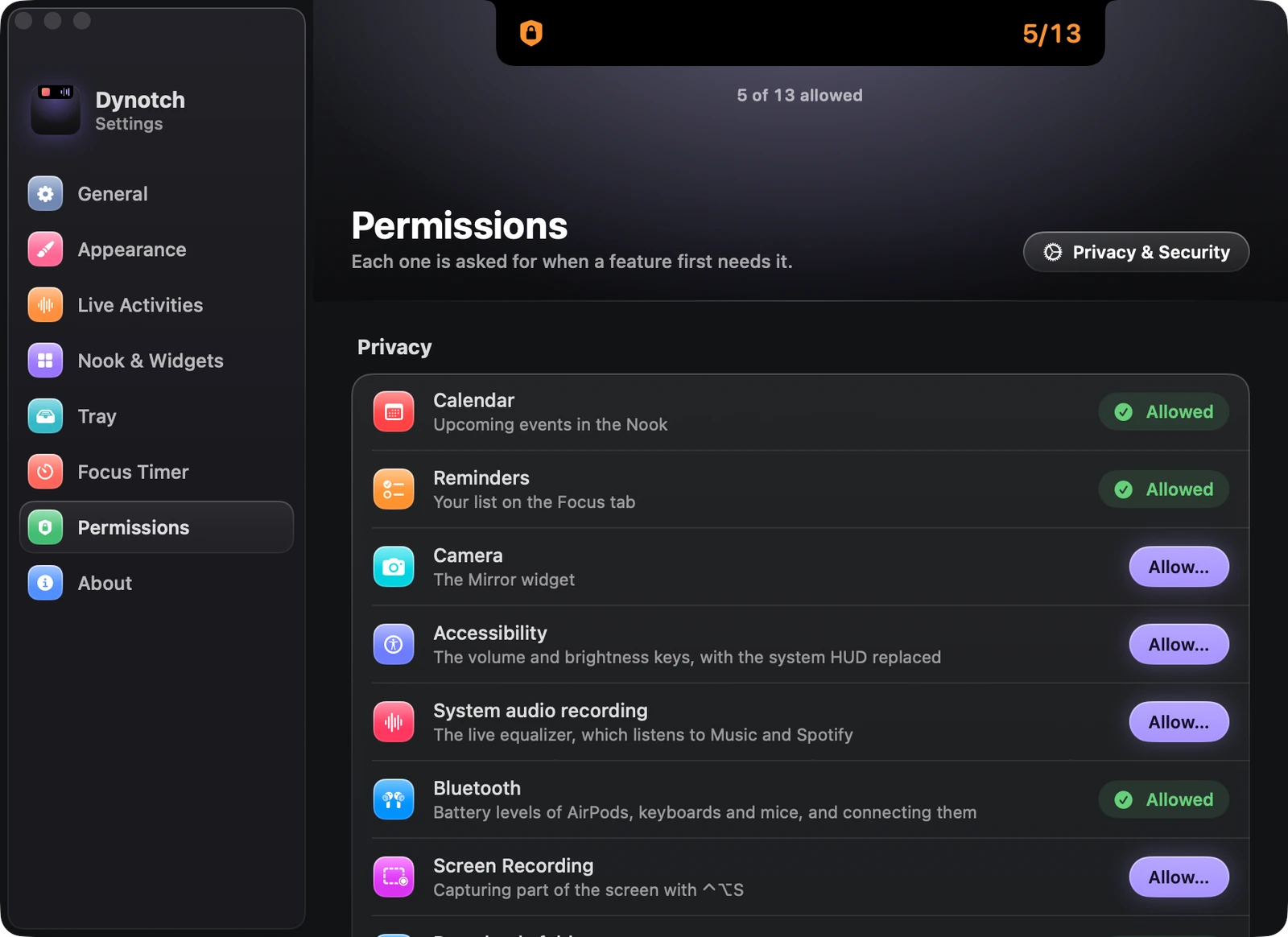
Each one is asked for when a feature first needs it.
Most permissions are asked for the first time you use what needs them. Two features are on from the start, so macOS asks about their folders soon after the first launch: the Downloads folder, and the folder screenshots are saved to. If Music or Spotify is running, macOS also asks whether Dynotch may control it.
Settings›Permissions shows the status of each one. Location and the screenshots folder are listed only while the feature that needs them is on.
| Permission | Used for |
|---|---|
| Automation: Music, Spotify | Track info, artwork and playback controls |
| Automation: System Events | The Dark Mode toggle |
| Calendar, Reminders | The Calendar and Reminders widgets |
| Camera | The Mirror widget, only after you click it |
| Accessibility | Replace system HUD: handling the volume and brightness keys. Asked for when you turn it on |
| System audio recording | Live equalizer: hearing what Music or Spotify plays. Nothing is recorded. Asked for when you turn it on |
| Bluetooth | Battery levels of connected devices, and connecting or disconnecting paired ones |
| Screen Recording | Capture: freezing the screen to select a region. Asked for the first time you capture |
| Downloads folder | Download progress in the closed notch, and finished downloads in the Tray |
| Full Disk Access | Notification peeks, and which Focus is on |
| Location (optional) | Weather where your Mac is, if you turn on Use my location instead of picking a city |
| iCloud Drive (optional) | Notes kept there, if you choose Use iCloud Drive |
| Desktop, Documents or Downloads folder | Adding new screenshots to the Tray (macOS asks for the folder screenshots are saved to), and notes kept in a folder you chose there |
Full Disk Access
This is the one permission with no prompt. Settings›Permissions opens its pane in System Settings, where you turn on Dynotch, adding it with + if it isn’t listed.
Dynotch needs it for two things, and it’s a read:
- Notification peeks. macOS has no public API for other apps’ notifications, so Dynotch reads Notification Center’s database.
- Which Focus is on. macOS only tells apps whether a Focus is on, so Dynotch reads which one from the Focus settings. Without it, the Focus activity and Focus rules on profiles show nothing.
See Privacy and network for what happens to what it reads.
Keeping them across updates
Updates are signed with the same certificate, so macOS sees the same app and permissions stay. If you build Dynotch yourself, they survive rebuilds as long as the app is signed with the local identity. An ad hoc build may lose them.