The notch
Tray
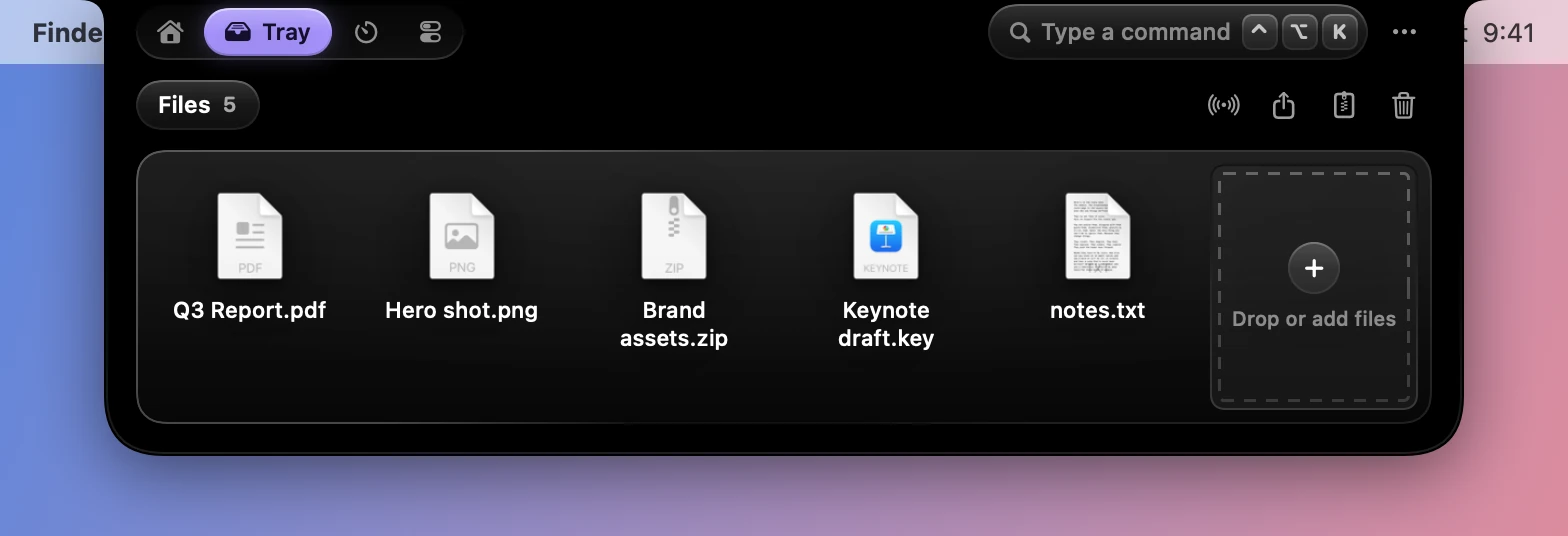
A shelf in the notch for the files you're using.
Tray items keep their Quick Look thumbnails and sizes, drag back out to any app, and survive relaunches.
Keeping files
Drag files toward the notch and it opens with four drop zones. Let go on the one you want.
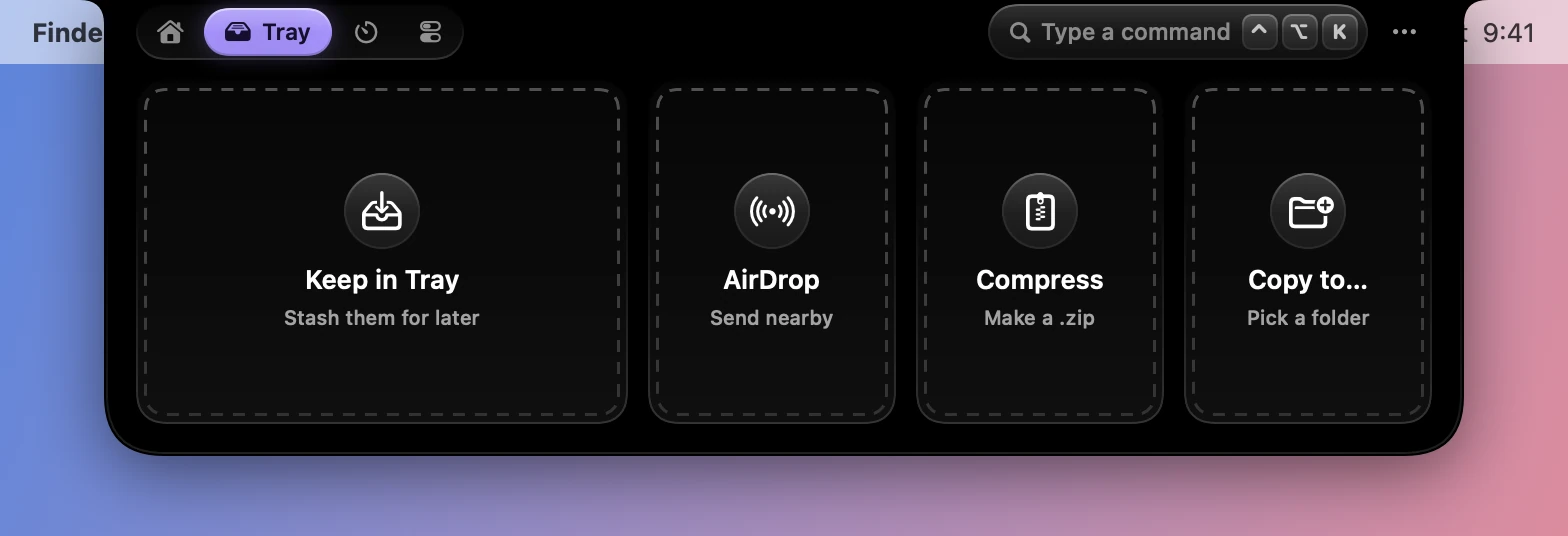
| Zone | What it does |
|---|---|
| Keep in Tray | Stashes them for later |
| AirDrop | Sends them nearby |
| Compress | Makes a .zip |
| Copy to… | Asks for a folder, and copies them there |
Only files and images open the notch as you drag. With the Tray already open, you can drop links and text on it too, and they become files, as dropped images do. The last tile, which takes whatever room the files leave, adds files from an Open panel.
Previewing
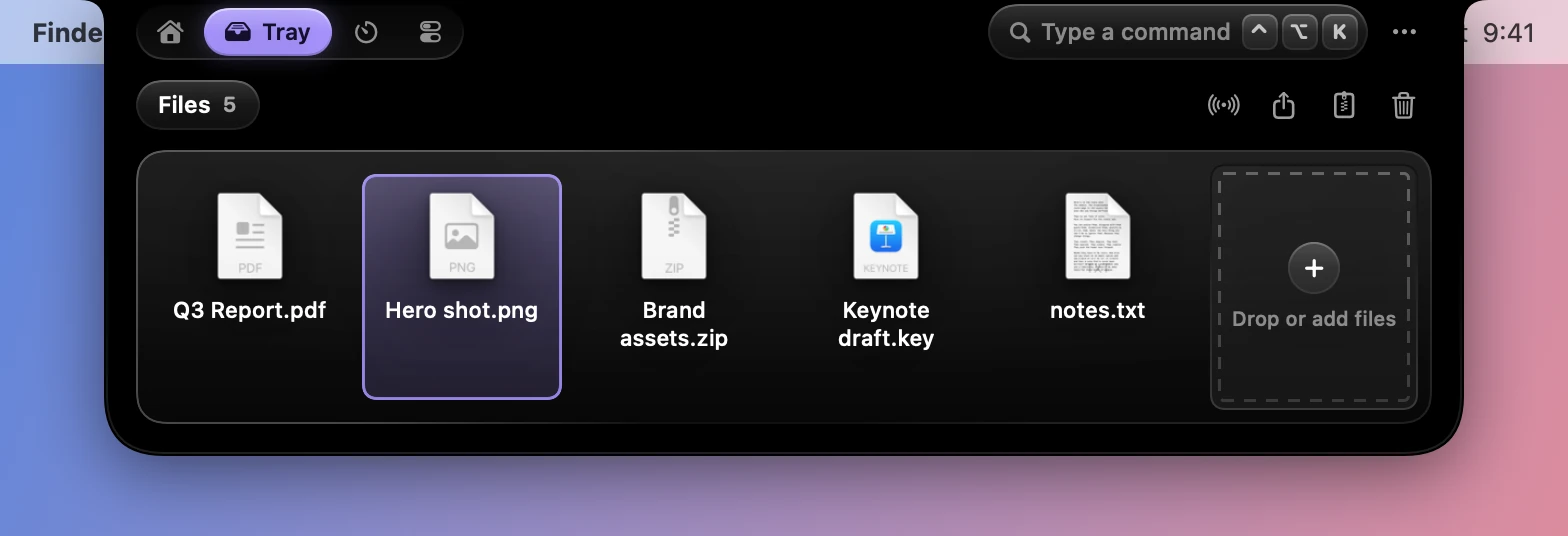
Click a file and press Space to see it in Quick Look, as in Finder. The arrow keys move between files.
What a file can do
Right-click a file for the full list:
- Quick Look, Open, Open With and Show in Finder
- Copy, AirDrop and Share
- Compress and Extract
- Convert Image to PNG, JPEG or HEIC, and Make Smaller
- Copy to…, Move to… and Remove
The toolbar above the shelf AirDrops, shares, compresses or clears everything at once.
Screenshots
New screenshots and screen recordings land in the Tray as macOS saves them, from whichever folder the Screenshot app uses. Turn this off with Add screenshots to the tray in Settings›Tray›Screenshots.
Dynotch’s own captures save to the same folder, so they land there too.
Copies or originals
By default a Tray item points at the file where it is, so moving or deleting the original affects the item.
With Keep copies on in Settings›Tray›Dropping files, the Tray keeps its own copy of every dropped file, so the originals can be moved or deleted. Copies go to the Trash when you remove them.
Settings
| Setting | What it does | Starts as |
|---|---|---|
| Open on drag | Opens the Tray when files are dragged toward the notch | On |
| Keep copies | Keeps a copy of every dropped file | Off |
| Add screenshots to the tray | New screenshots and screen recordings show up here | On |
Show Folder and Clear Tray are at the bottom of the same page. To send finished downloads here as well, turn on Downloads to the Tray in Settings›Live Activities›Options.
From a script, dynotch tray adds files. See The dynotch command.